

WinOLS reseller database
Access TuningFactory projects through WinOLS or the customer portal. Connect your EVC customer number to your account to browse the available projects and purchase the files you need.
Tuning files for your WinOLS workflow
Browse the TuningFactory reseller database in WinOLS, or use the portal to find available versions associated with an uploaded original file. Check the project information against the ECU and software version before purchasing.
If you need help with database access or identifying the correct project, contact TuningFactory with the relevant details.

Connect your WinOLS account
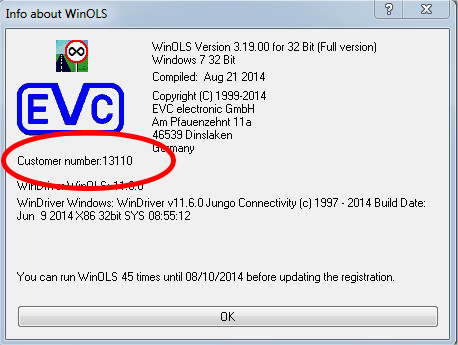
Find your EVC customer number.
Open Edit Account in the TuningFactory portal and enter your number in the WinOLS ID field.
Complete any reseller-registration confirmation requested by EVC. If access is not active, contact TuningFactory with your EVC customer number.
In WinOLS, open Miscellaneous > Updates + Registration.
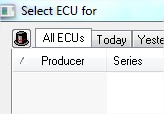
Open Project > Open, select the customer icon (hat symbol), and choose TuningFactory.
The available projects appear in the project list. Select the required project and confirm the purchase. The applicable credits are deducted and the project is downloaded to WinOLS.
You will need an EVC account and a full WinOLS 5 licence to follow EVC’s current reseller-customer setup process.
Find a project through the portal
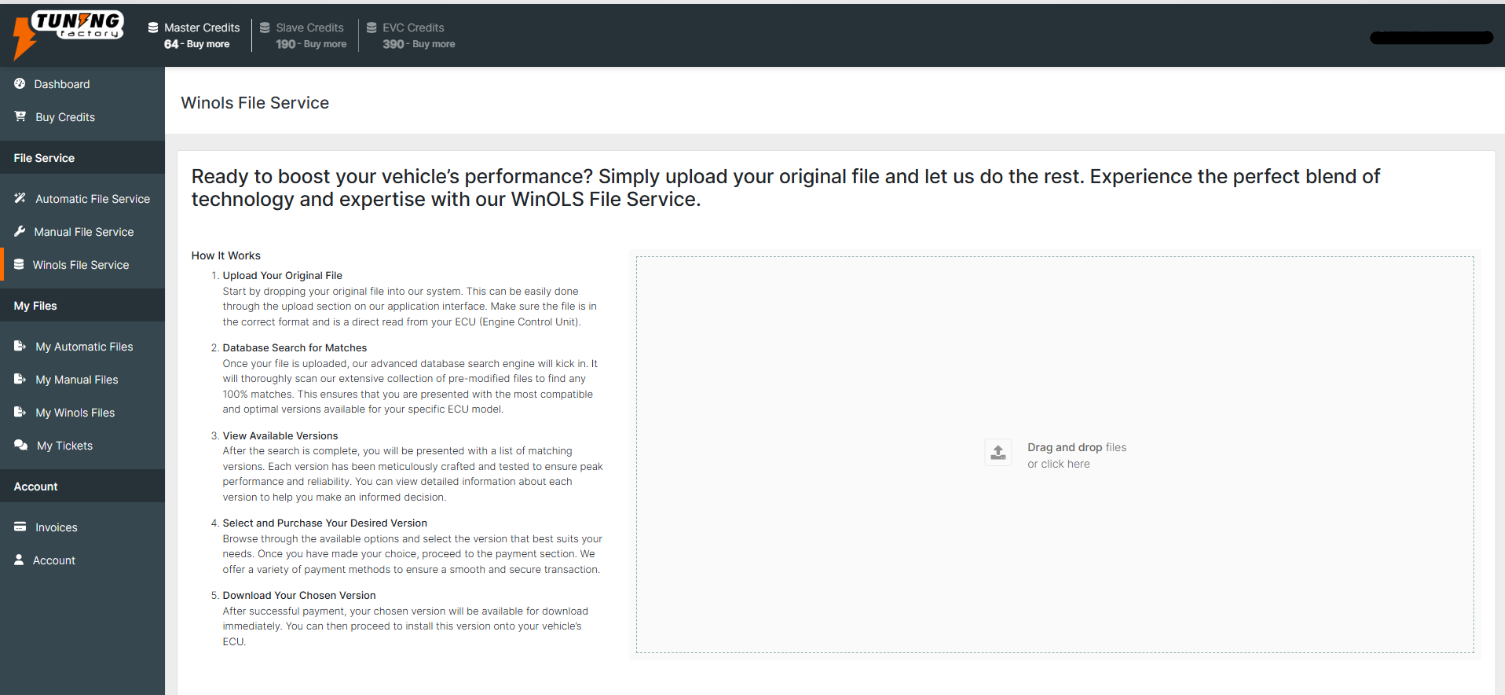
Open WinOLS File Service in your customer account and upload the original ECU file.
Review the available versions, select the required project and confirm the purchase before downloading.
Need help with database access?
Contact us with your EVC customer number and a short description of your question. For other ECU file requests, explore our services.